Excerpio · Step by step
How to use.
Start with the demonstrations, then explore the questions below for more detail.
00 / Quick start
Get started with Excerpio
Capture text, record your thoughts, and revisit your reading discoveries in four simple steps.
Capture Text
Tap Capture and aim at a passage. In Auto mode, hold steady while the text is recognized, then tap Finish to save it.
Save an Excerpt
Touch and hold the source text, then drag to select a sentence. Tap “Highlight & Add Excerpt” to keep it as an excerpt.
Add a Thought
Touch and hold a saved excerpt and tap “Add thought”. Write your reflection, then tap outside the editor to finish.
Review Excerpts
Open the Review tab to revisit your excerpts. Scroll to read more, and tap the lightbulb to show or hide your thoughts.
01 / CAPTURE
Keep the words in front of you
Open the Capture tab, tap Capture, and aim at a page.
-
What is the difference between Auto and Manual modes? How do I switch?
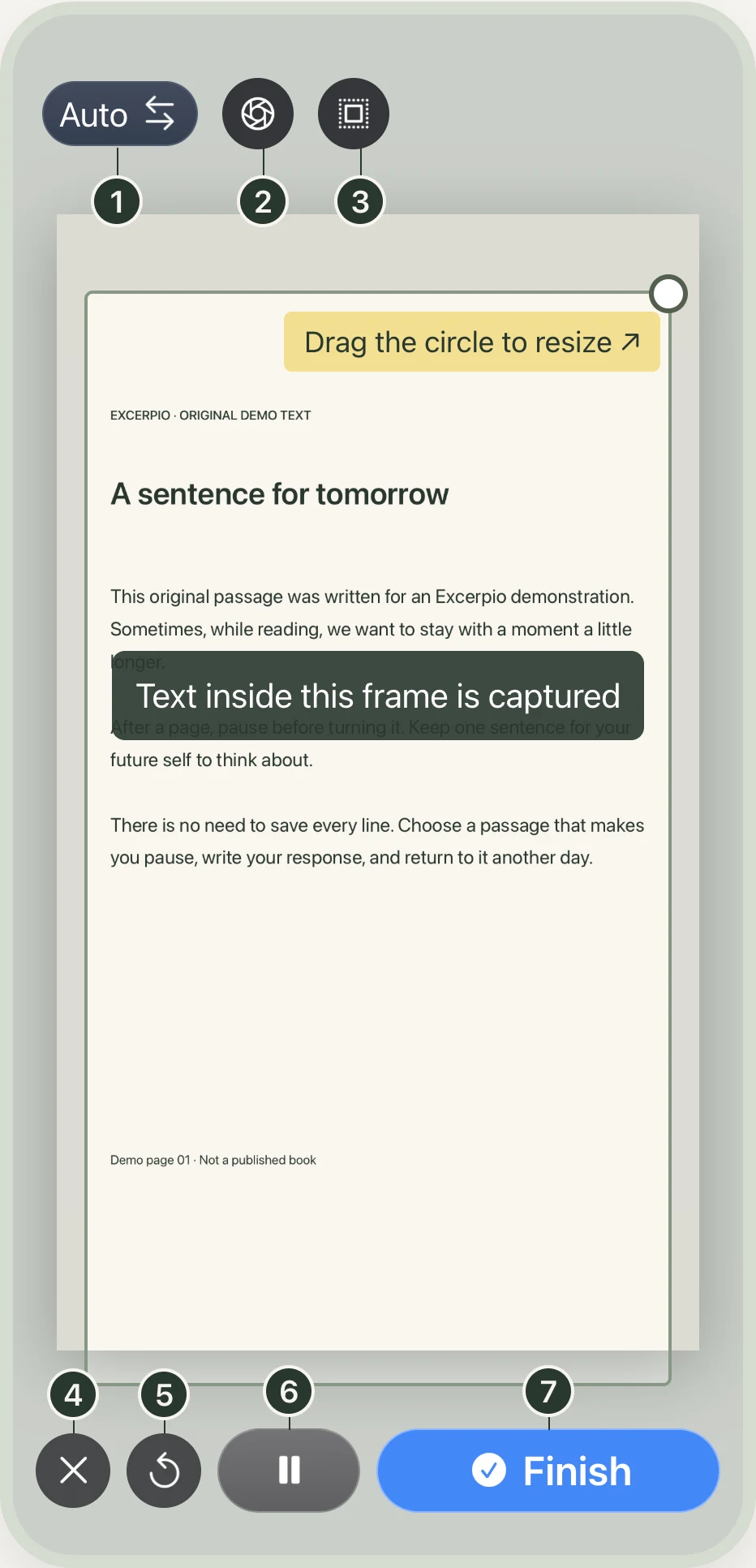
Tap the top-left label in the camera to toggle between Auto and Manual modes:
Auto Mode
Aim at the text and hold steady. Recognized text accumulates automatically in real time. Tap
 Pause when turning pages; tap
 Finish when done.
Manual Mode
Frame the page and tap the shutter. Each photo is recognized separately. Tap the thumbnail to review, and tap
Finish when done.If content has already been captured, switching modes asks you to confirm clearing the current capture.
-
Can I also save original page photos in Auto mode?
Yes. If you enable the
 aperture icon at the top, Excerpio will automatically take a photo after capturing text.
Hold steady when the photo prompt appears. Successful photos are saved under Attachments in the entry for easy visual reference later.
To save a copy to your iOS Photos library as well, enable “Save images to Photos” in Settings.
-
How do I exclude side notes, headers, or unwanted text?
Tap the
 dotted-square icon at the top to toggle the Mask. Drag the circle at the frame’s top-right corner to resize it, keeping only the passage you want inside.
If you turn off the mask, the entire visible camera preview is used for recognition.
-
How do I cancel and discard the current capture?
Tap the
 Cancel icon at the bottom left to leave the camera without saving this capture’s text or photos.
-
Unsatisfied and want to re-take? Do I need to exit the camera?
No. Tap the
 Restart icon to instantly clear the current capture’s text and photos, remaining right in the camera to start afresh.
-
How do I pause recognition while turning pages or holding steady?
Tap the
Pause icon to temporarily halt recognition and prevent accidental text input. The button toggles to ▶ Resume; tap it again once you are framed. -
Once recognition is done, how do I save and review the result?
Tap the
Finish icon at the bottom right to end the capture and save. Excerpio immediately opens the entry detail view for highlighting and notes.
02 / HIGHLIGHT, EXCERPT & EDIT
Keep a sentence. Fix a word.
After capturing, open the entry and start in Source Text.
-
The entire page was captured. How do I keep only my favorite sentence?
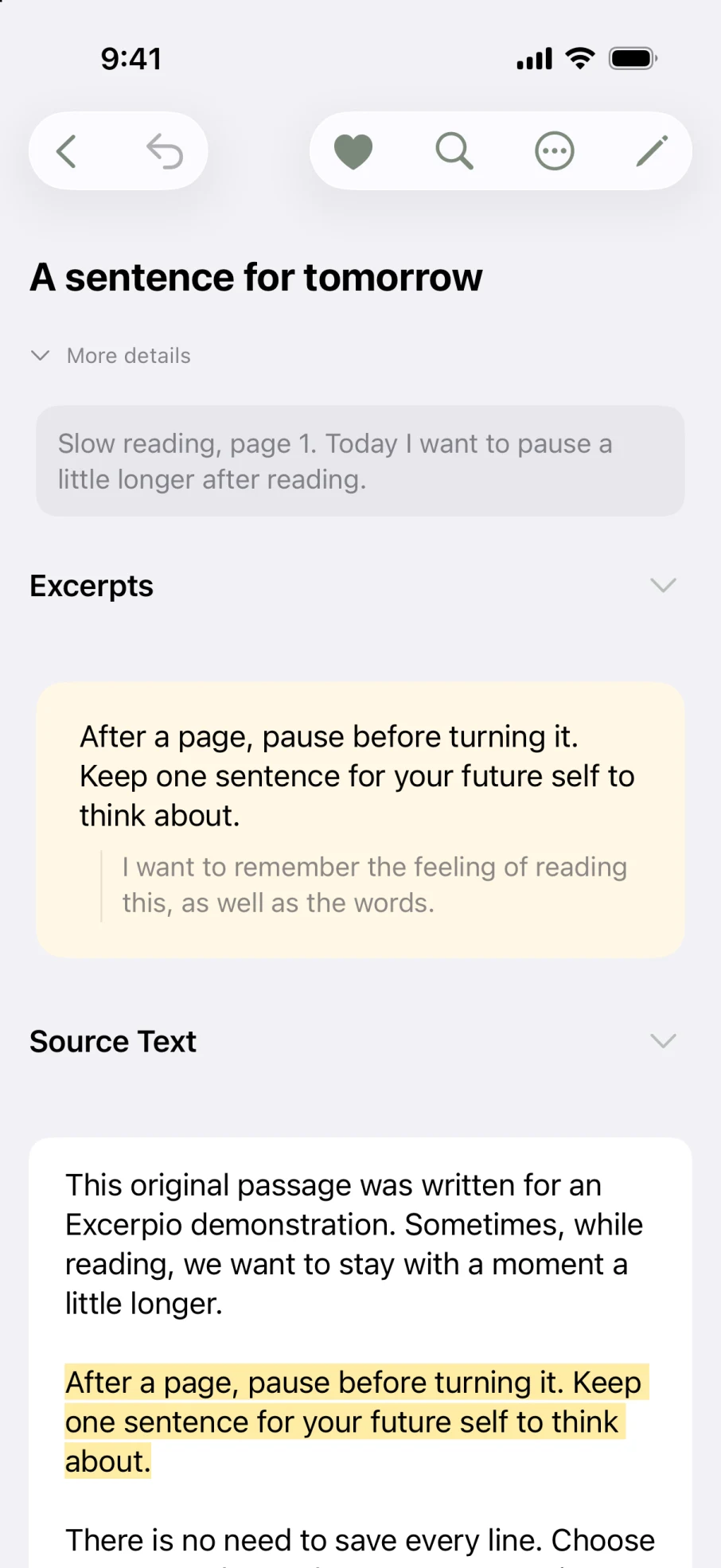
Touch and hold within Source Text, drag the selection handles over the exact sentence you want, then choose “Highlight & Add Excerpt”. The passage is highlighted and saved into Excerpts.
Saved excerpts appear in your Review tab and Home Screen widget. Simple highlighted text without creating an excerpt remains in the entry only.
-
Where can I record a thought or personal insight about this excerpt?
Touch and hold any saved excerpt and tap “Add thought” to write down your personal reflections or connections.
-
What if there is a typo in the recognized text? How do I edit it?
Tap the
 pencil icon at the top right to edit source text or existing excerpts directly.
03 / REVIEW
Return to the words you kept
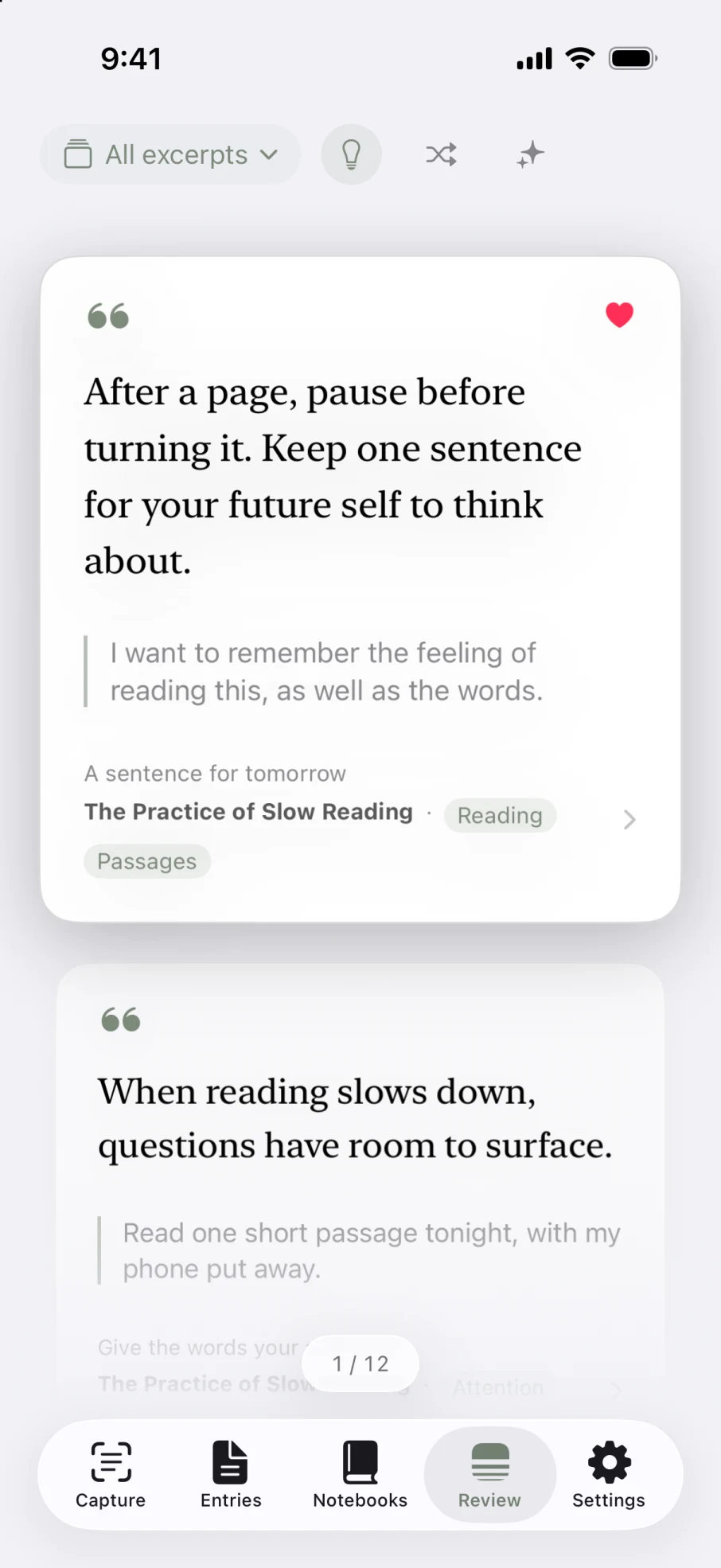
Open the Review tab at the bottom and scroll through your excerpts. Here is what the controls do.
-
How do I review unseen or infrequently reviewed excerpts?
Tap the top-left menu to switch filters between “All Excerpts”, “Unseen”, or “Infrequently Reviewed”.
You can also tap the
 Review icon at the top left of a specific notebook to focus on that book’s excerpts.
-
How do I show or hide my thoughts during review?
Tap the
 Thoughts icon at the top to toggle your thoughts visible or hidden on each excerpt card.
-
How do I shuffle excerpts for serendipitous reading?
Tap the
 Shuffle icon at the top to toggle random order, bringing unexpected discoveries with every scroll.
-
Short on time? How do I read a small set of featured excerpts?
Tap the
 Featured icon at the top to pull a curated, bite-sized batch. You can adjust the batch size anytime in Settings.
-
How do I jump back to the full entry and context from an excerpt card?
Tap the notebook and entry details bar beneath the focused card to open the original full entry and see complete surrounding context.
04 / REVIEW EXCERPTS WIDGET
Review excerpts on your Home Screen
Keep your words in everyday view with the Review Excerpts widget, letting a memorable line stay with you throughout the day.
-
How do I add the Excerpio review widget to my iPhone Home Screen?
Touch and hold an empty area on your Home Screen until icons jiggle, tap Edit or the
 paintbrush icon → tap “Add Widget” → search for Excerpio → select Medium or Large, then tap “Add Widget”.
Save a few excerpts in Excerpio first so the widget immediately has lines to showcase.
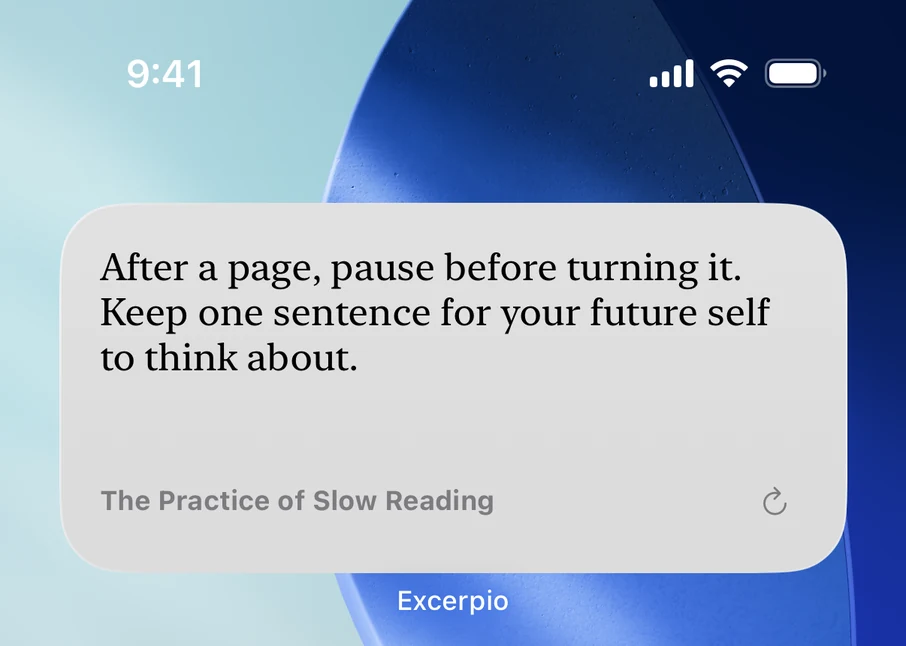
Medium widget 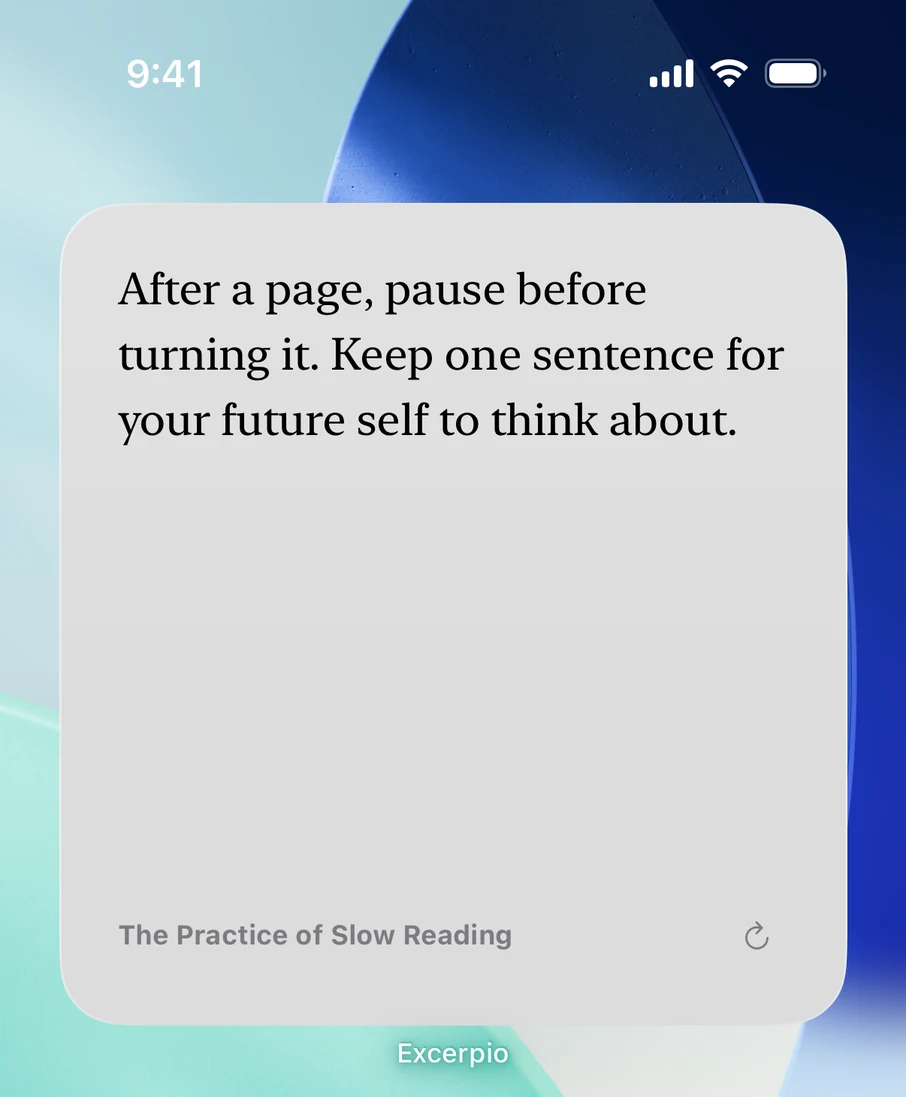
Large widget -
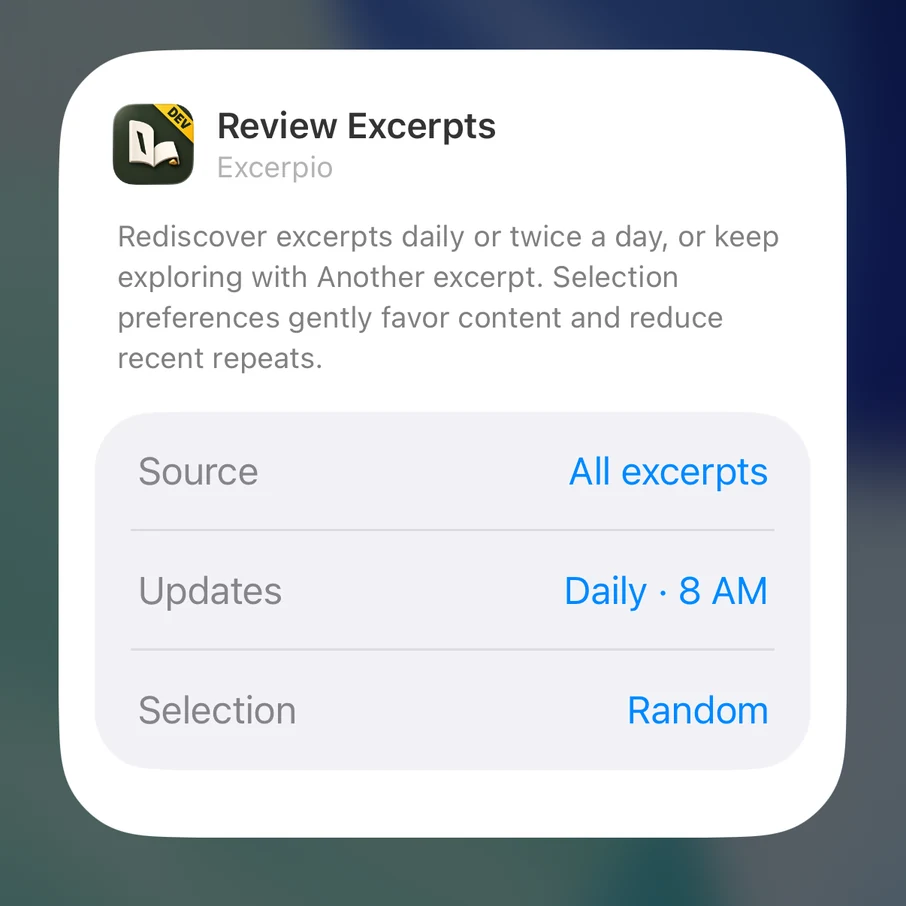
What settings can I customize for the widget display?
Touch and hold the Excerpio widget on your Home Screen and tap “Edit Widget” to configure your preferences:
- Content scope: Select all excerpts or limit to a specific notebook.
- Refresh frequency: Set how often the widget rotates new excerpts.
- Selection bias: Prioritize random excerpts, unreviewed passages, or older favorites.